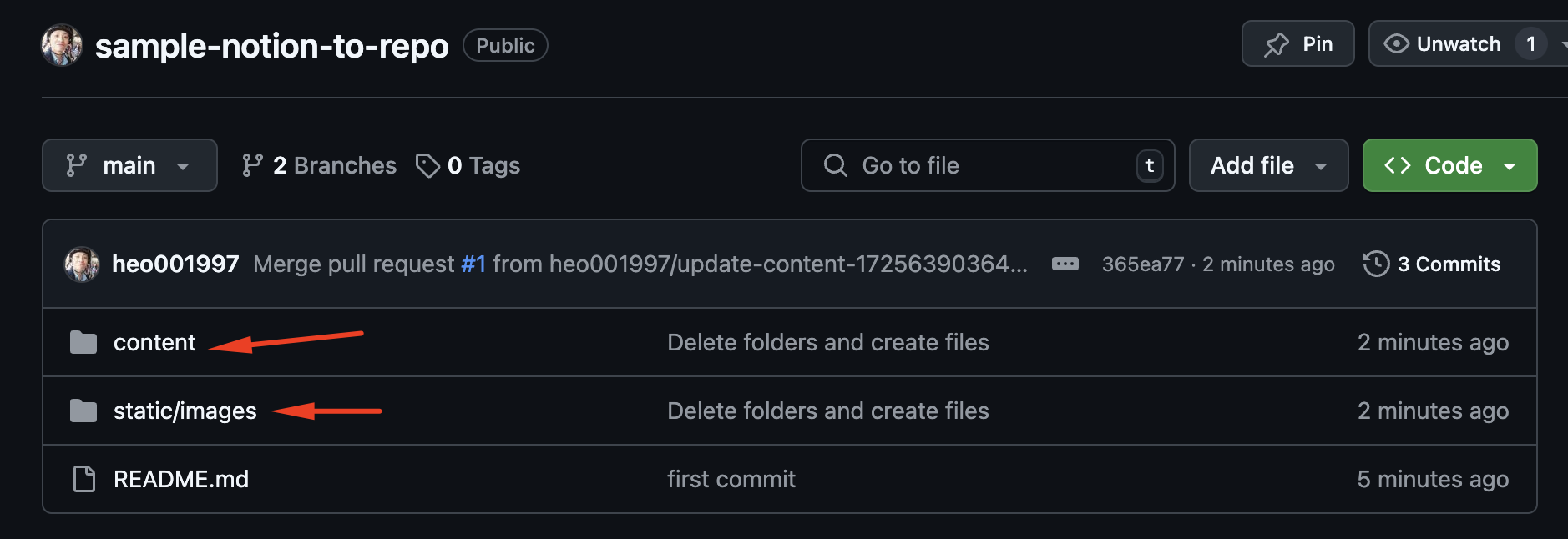
2. Process Notion to Github Repo
Open Notion to MD, fill in the information, and proceed to the step where you click “Parse into Hugo Relearn”.
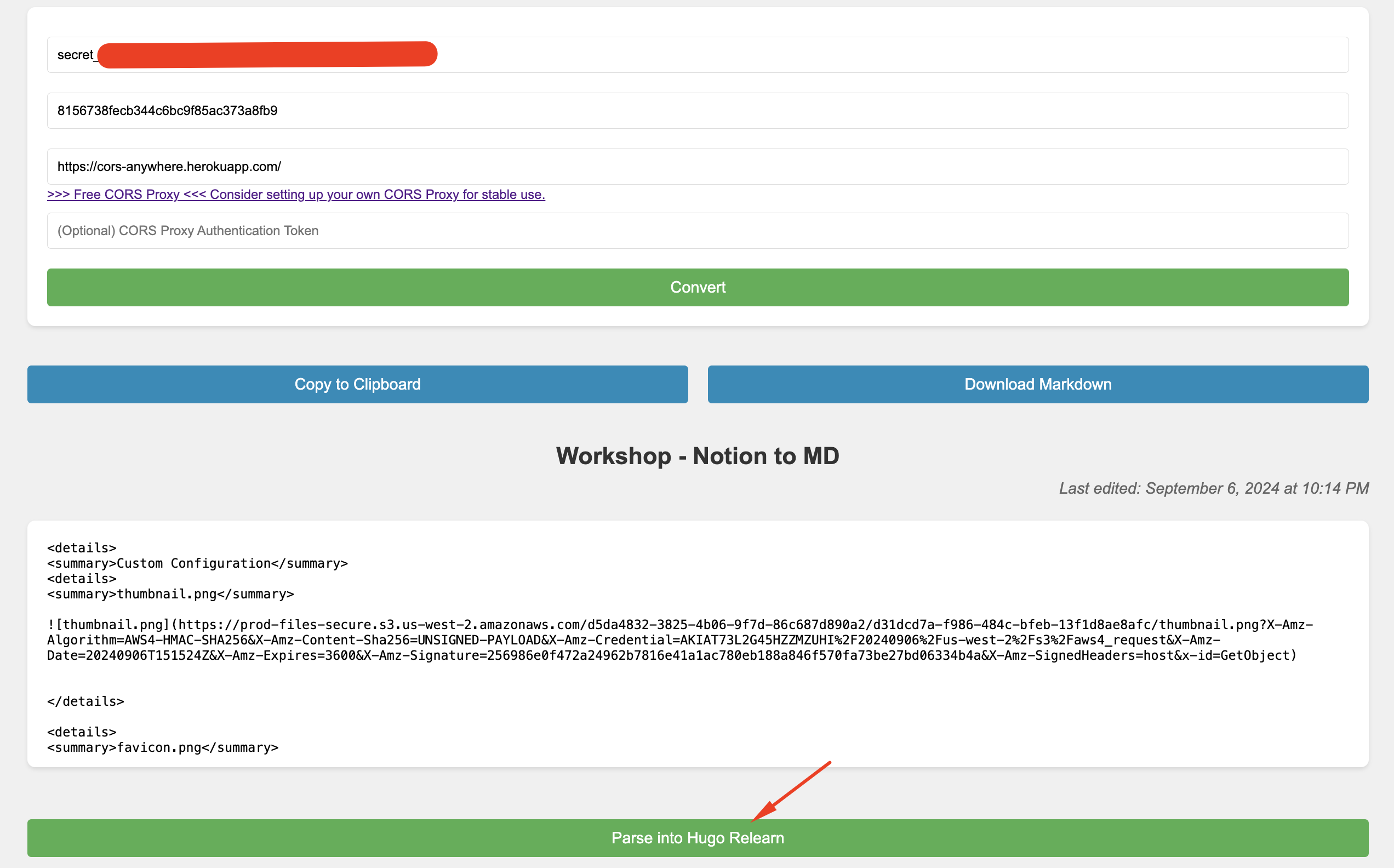
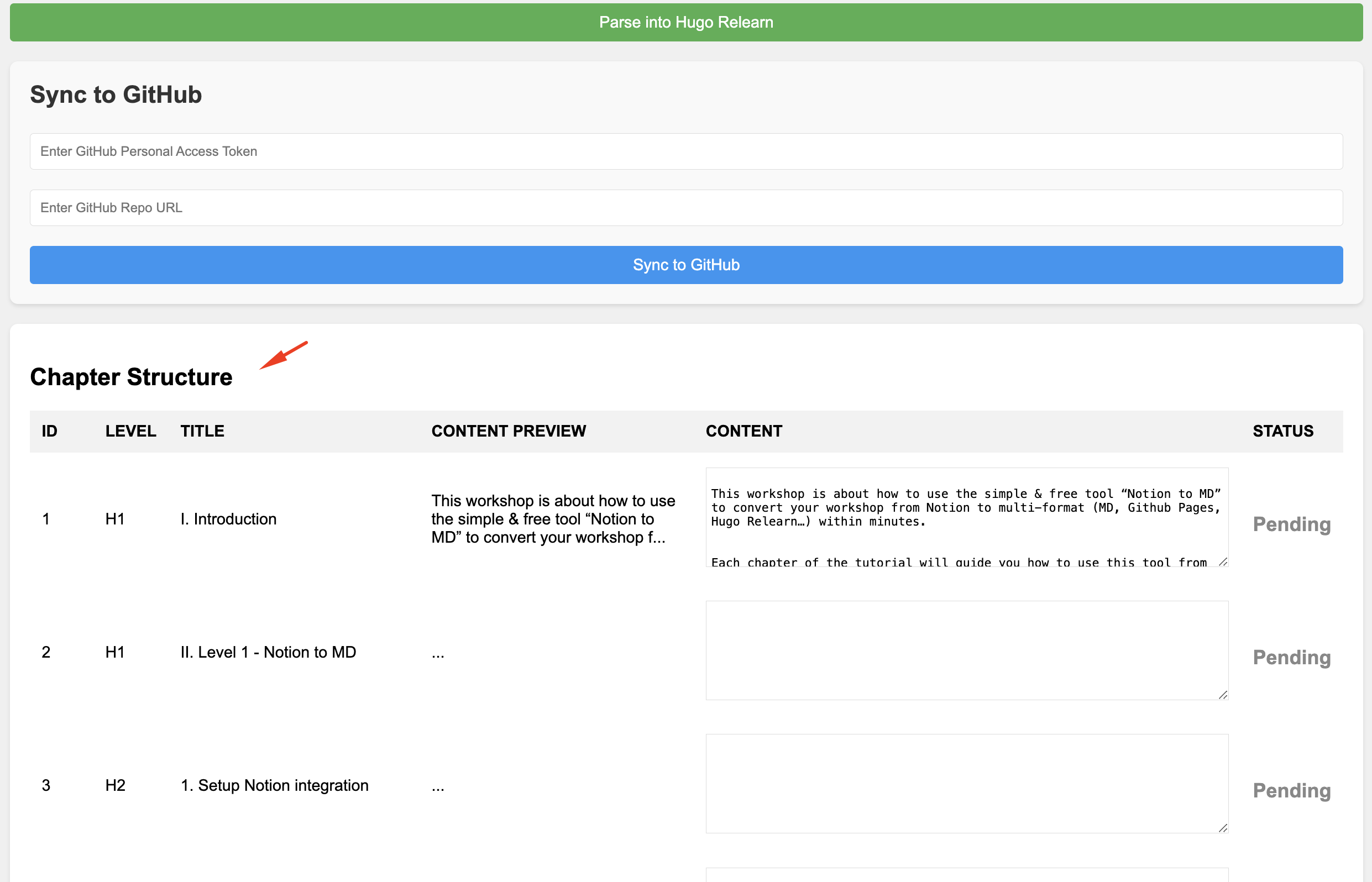
It will show the “Chapter Structure” table, where we can preview and check if the Git repository structure matches the headings inside our Notion page.
The repository structure will follow two simple rules:
- Header H1 will always create a new directory.
- Headers with larger numbers will always be inside the nearest smaller header. For example, H2 will be inside H1.
Try not to overthink this structure for now. Just follow the trial-and-error principle, and we’ll be fine.
Fill in the Sync to GitHub information and start the “Sync to GitHub” process.

(Troubleshooter) This error may occur if you use a brand-new repository without any initialized commits.
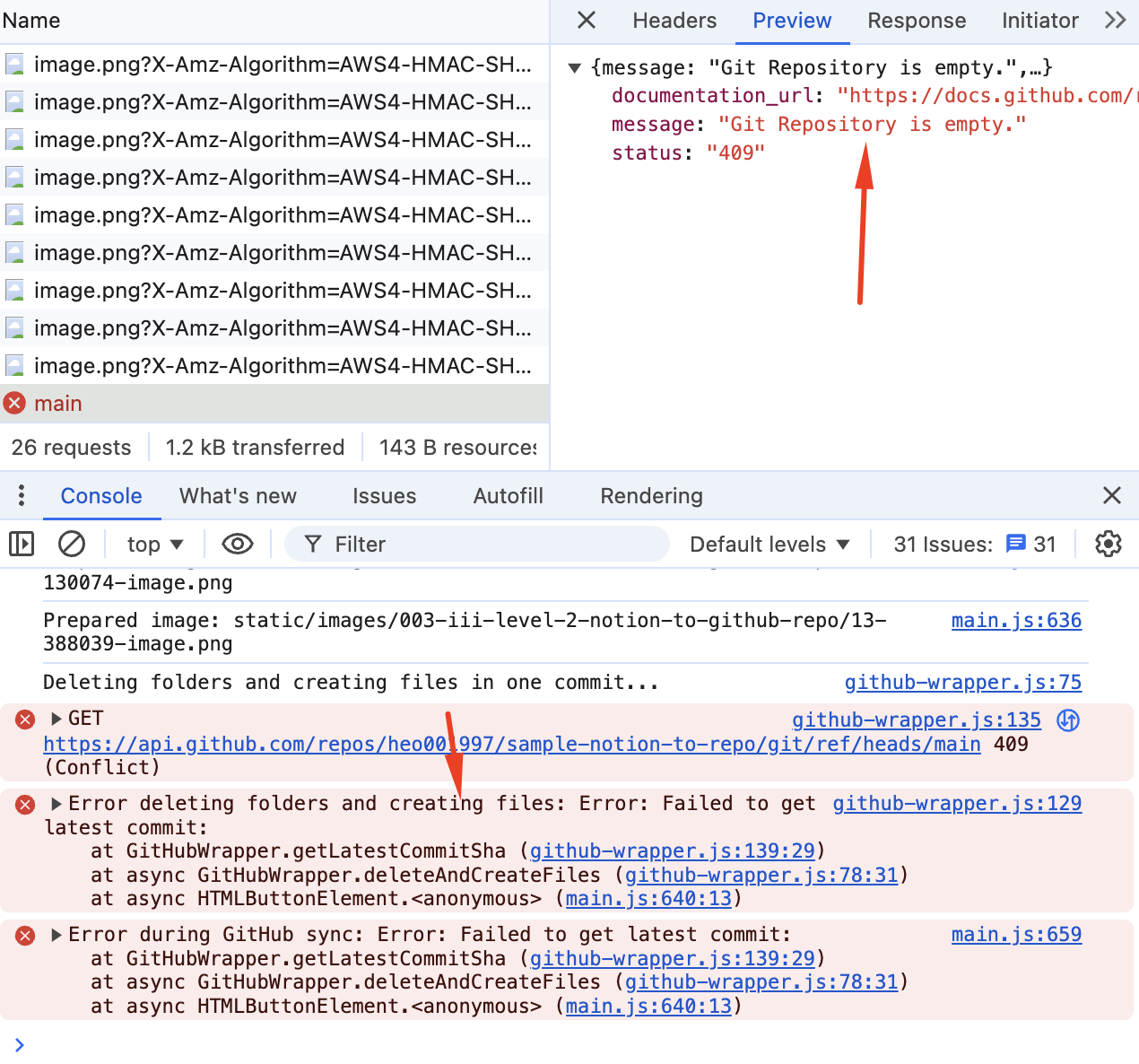
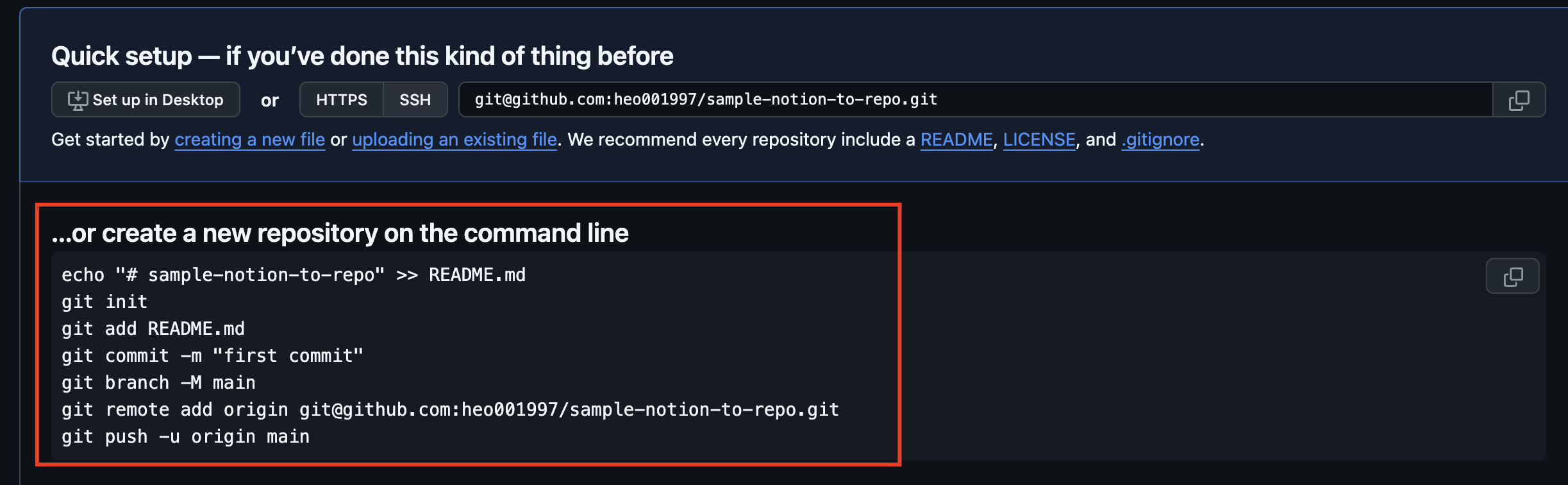
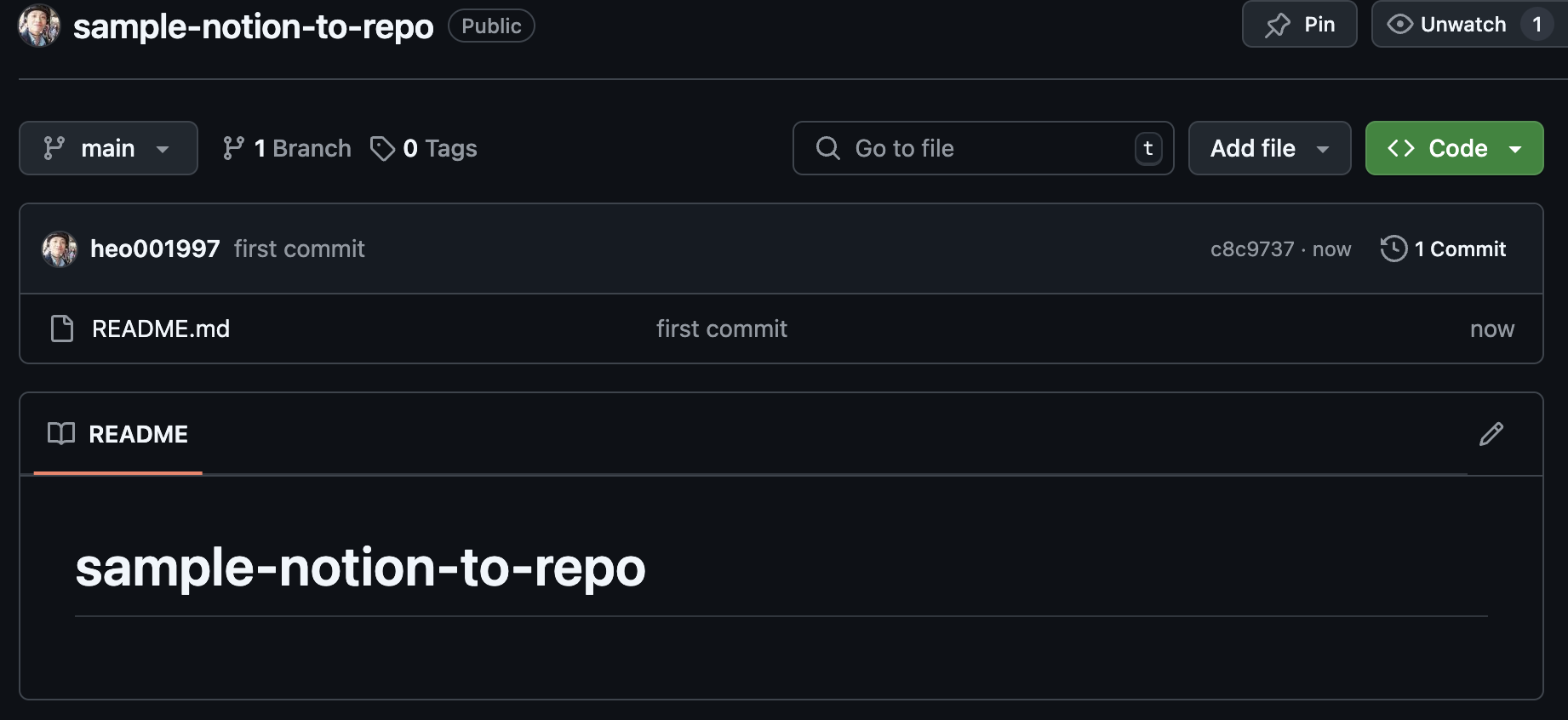
The solution is to initialize the Git repository. Just use the simple git instruction, and that should be enough.
If everything is working correctly, the process will start and scroll through each step. When it’s complete, you will see this message.

Double-check the GitHub repository. You should see the content directory (holding contents) and the static directory (holding images) created, indicating success.